Back to the BIM & IFC blog
Tools & comparisons · 2026-10-02 · 9 min
How to Measure an IFC Model Online: Distances, Areas, Angles and Sections
Measuring in a free viewer usually means clicking near a corner and hoping. Snapping to real vertices and edges, measuring through a section, and keeping the dimensions in the screenshot you send is what makes a browser measurement worth quoting.
 How to Measure an IFC Model Online: Distances, Areas, Angles and Sections — IFC Viewer Online article cover
Most "measure" buttons in free IFC viewers do something slightly different from what the name suggests. You click somewhere near a corner, the tool picks the nearest point on whatever triangle happened to be under the cursor, and you get a number with four decimals of false precision.
That is fine for a rough check. It is not fine for a number you are going to put in an email to a contractor. The difference between the two is three things: what the tool snaps to, whether it respects sections, and whether the measurement survives into the image you send.
Snapping: the part that decides whether a number is real
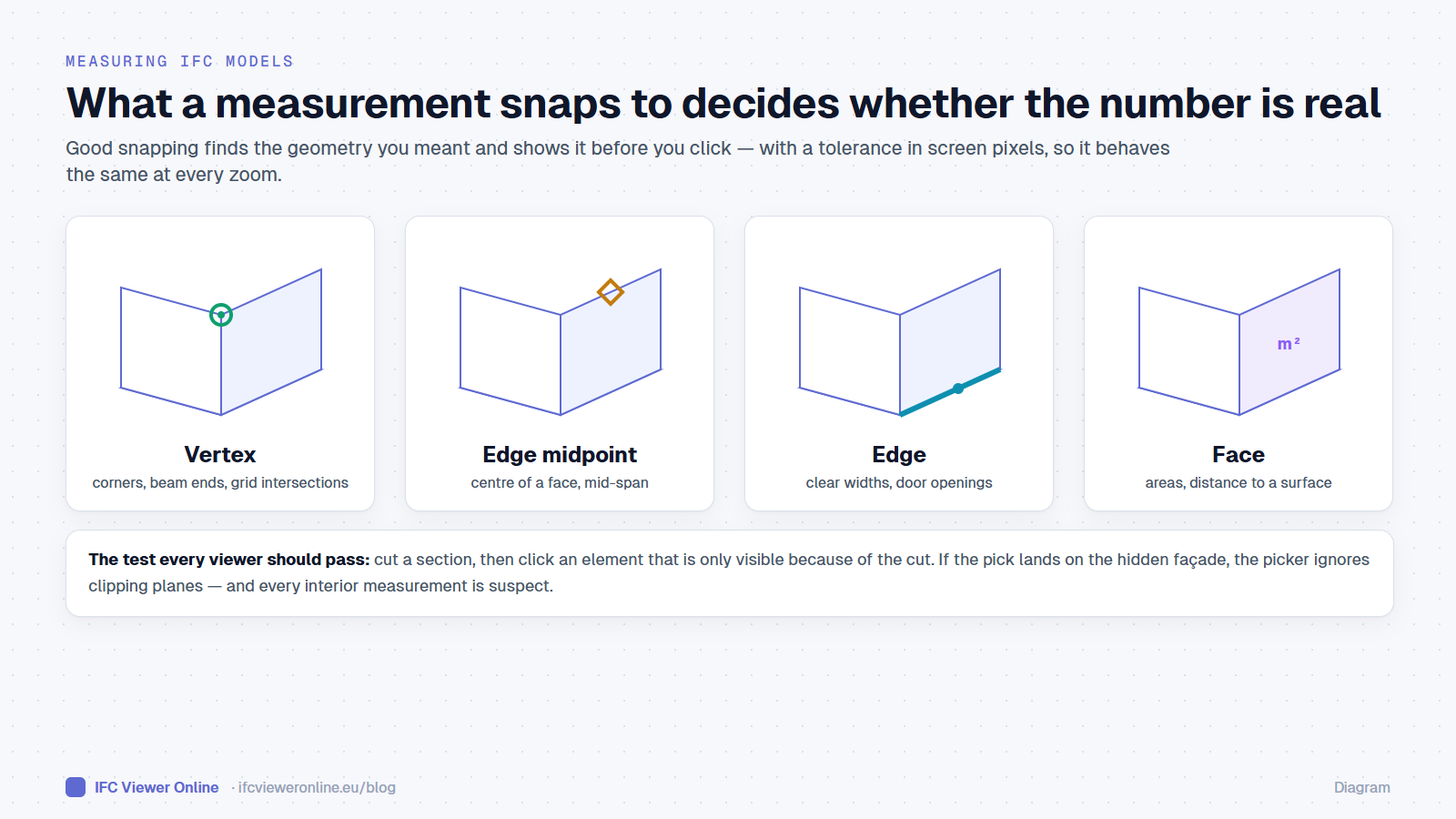 The four snap targets. Knowing which one the tool found, before you click, is what makes the number trustworthy.
A measurement is only as good as its two endpoints. Good snapping finds the actual geometry you meant — a vertex, the midpoint of an edge, a point along an edge — and tells you which one it found before you click.
| Snap target | Use it for | Trap |
|---|
| Vertex | Corners, ends of beams, grid intersections | Tessellated curves have many vertices; zoom in to pick the right one |
| Edge midpoint | Centre of a wall face, mid-span | Midpoint of the triangle edge, not of the wall, on badly tessellated models |
| Edge | Clear widths, door openings | Without a perpendicular mode you measure diagonally |
| Face | Areas, distance to a surface | Area of the picked face, not of the room |
One detail matters more than it sounds: the snap radius should be measured in screen pixels, not metres. A radius of one metre is a sensible tolerance up close and absurd from fifty metres away, where it grabs points on the wrong element. Calibrating it to the pixel size at the cursor keeps the behaviour the same at every zoom.
The five measurements you actually need
- Distance — two points, with an optional perpendicular mode for clear widths and storey heights.
- Path — a chain of points, for a cable route or an escape distance.
- Area — a polygon, or the area of a picked face.
- Angle — three points, for roof pitches and ramp gradients.
- Point — the coordinates of a single point, useful when checking a model against a survey.
Measuring inside: sections that the picker respects
To measure a ceiling void or a riser you need to cut the building open. Here is a trap that catches many web viewers: the section hides the façade visually, but the picker still hits it. You click on the duct you can see and get the wall you cannot.
- Single planes along X, Y or Z, or aligned to a picked face.
- A section box, to isolate one room or one riser.
- Per-storey plan cuts: the storey levels are read from the IFC — elevations corrected for units and datum — and the cut sits at a working height above the floor, like a drawn plan.
When storey elevations come out wrong — a plan cut that slices through a slab — the cause is usually in the export, not in the viewer. Common IFC model errors covers the storey and placement problems behind it.
Keeping the dimensions in what you send
A measurement nobody else can see is a measurement you have to retype. Dimensions should be drawn into screenshots, into the snapshot attached to a BCF issue, and into recorded video and GIFs — so the number travels with the image.
For issues, that means a BCF topic whose snapshot already shows the clearance that is too small. How to make those viewpoints open in the right place in other tools is in BCF 2.1 vs 3.0.
Keyboard, for people who measure all day
- M opens and closes the measure panel; the number keys on the top row switch tool.
- Right-click finishes or cancels the measurement in progress.
- Escape steps back one level at a time: cancel the drawing, leave the tool, close the panel.
How to Measure an IFC Model Online: Distances, Areas, Angles and Sections